
Canonical issues happen when Google finds two or more URLs with the same or near-identical content and gets no clear, consistent signal about which one to index. Audit tools also call them canonicalization issues or canonical tag errors. When they happen, Google picks a version for you, and sometimes it picks the wrong one.
Most guides stop at “add a canonical tag.” That advice misses why Google ignores canonical tags so often. A rel=canonical tag is a hint, not a command. Redirects, internal links, sitemaps, hreflang and your JavaScript all send signals too, and when they disagree, your tag loses.
This guide covers the 17 canonical issues we find most often in technical audits, how to spot each one in Google Search Console and a crawler, and a decision table for picking the right fix. It also covers two Google updates many older articles still get wrong: the 2023 syndication change and the December 2025 JavaScript canonical guidance.
What Are Canonical Issues?
A canonical issue is any setup where search engines can’t tell which URL is the main version of a page. It usually comes from duplicate URLs with no canonical tag, a tag that points to the wrong place, or signals that contradict each other. The result is Google choosing, indexing and ranking a URL you didn’t pick.
Two related terms often get mixed up with canonical issues:
| Term | What it means |
|---|---|
| Canonical URL | The one version of a page you want indexed and shown in search results |
| Canonical tag (rel=canonical) | An HTML element in the head that tells search engines which URL is canonical |
A canonical tag looks like this. It sits inside the <head> with your other meta tags, on every version of the page, including the main version itself:
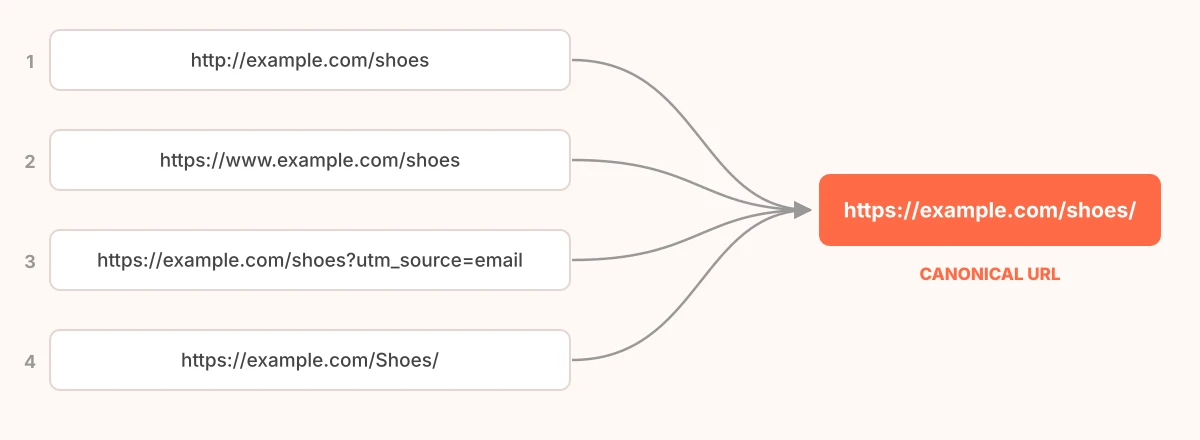
<link rel="canonical" href="https://example.com/blue-running-shoes/" />If example.com/blue-running-shoes/?utm_source=newsletter carries that tag, Google gets a strong hint to fold the tracking URL into the clean one.

Canonical issues are not a duplicate content penalty
Some guides warn about “duplicate content penalties.” Google does not penalize sites for ordinary duplicate URLs like parameters, print pages or www and non-www versions. Penalties are for content copied on purpose to manipulate rankings.
The real cost of canonical issues is quieter. You lose control over which URL ranks, and your signals end up spread across versions you never meant to compete.
How Google Chooses a Canonical URL
Google groups duplicate URLs into a cluster, then picks one URL from that cluster as canonical. Your canonical tag is only one input. Google weighs redirects, canonical tags, sitemaps, internal links, HTTPS and page quality together. When those signals agree, Google usually follows your choice. When they conflict, Google decides on its own.
Google’s own documentation ranks the main methods by how strongly they influence that choice:
| Signal | Strength | Best used for |
|---|---|---|
| 301 or 308 redirect | Strong | Retiring a duplicate URL for good |
| rel=canonical link element | Strong | Duplicates that must stay live for users |
| rel=canonical HTTP header | Strong | PDFs and other non-HTML files |
| Sitemap inclusion | Weak | Backing up your choice at scale |
| Internal links | Supporting | Showing which URL you treat as the real one |
| HTTPS over HTTP | Supporting | Google prefers the HTTPS version when both exist |
The practical takeaway: a canonical tag works best when everything else on your site agrees with it. If your tag says URL A but your menu, sitemap and redirects all point to URL B, expect Google to pick B.
Why Canonical Issues Hurt Your SEO
Canonical issues hurt SEO because they take the ranking decision away from you. Google may index a URL with tracking codes, an old HTTP page or a filtered variant instead of your main page. Links and internal signals can split across versions, crawl time goes to copies, and your Search Console data gets harder to read.
Here is what that looks like in practice:
- The wrong URL shows in search. A product page ranks as
/shoes?color=blue&sort=priceinstead of/shoes/. It looks messy, and that variant may disappear when the filter changes. - Link signals split. If some sites link to the HTTP version and others to HTTPS, and Google doesn’t cluster them, each version earns only part of the credit.
- Your preferred page gets demoted. When Google selects a different canonical, your chosen URL drops out of the index. Its internal links and backlinks now support a page you didn’t plan to rank.
- Crawl time goes to copies. On a site with thousands of parameter or filter URLs, Googlebot spends time on duplicates. New and updated pages wait longer to get crawled.
- Reports get confusing. Search Console assigns clicks and impressions to the canonical URL. If Google picked a variant, your performance data sits under a URL you aren’t tracking.
17 Common Canonical Issues (and How to Fix Each One)
Most canonical issues fall into four groups: duplicate URL variants (issues 1 to 5), canonical tag mistakes (6 to 11), conflicting signals (12 to 15) and page-level duplicates (16 and 17). Variants create the copies, tag mistakes fail to resolve them, and conflicting signals make Google ignore a tag that looks correct.
1. HTTP vs HTTPS and www vs non-www
Your homepage might load at four addresses: http://example.com, http://www.example.com, https://example.com and https://www.example.com. If all four return a 200 status, you have four copies of every page.
Fix: Pick one version and 301 redirect the other three to it at the server or CDN level. Then make every canonical tag, internal link and sitemap URL use that exact version.
2. Trailing slash and letter case variants
To Google, /pricing and /pricing/ are different URLs. So are /Pricing/ and /pricing/, because URL paths are case-sensitive.
Fix: Choose one format, usually lowercase with one trailing slash rule, and redirect the other forms. Keep the canonical tag in that same format. Our SEO slug guide covers how to set clean URL formats from the start.
3. URL parameters (tracking, sorting, filtering, session IDs)
UTM codes, ?sort=price, ?color=red and ?sessionid=123 each create a new URL that shows the same or near-identical content. E-commerce and SaaS sites can generate thousands of these.
Fix: Add a canonical tag on parameter URLs that points to the clean URL. For filter combinations that have real search demand, like “red running shoes,” build a proper indexable page with its own self-referencing canonical and unique copy instead.
4. One product in several category paths
Some platforms let a product live at /shop/summer/silk-dress/ and /shop/dresses/silk-dress/. Same product, two URLs, often linked from two different menus.
Fix: Canonicalize every path to one product URL. Better still, use category-free product URLs and link to that version everywhere.
5. Pagination canonicalized to page 1
A common mistake is pointing /blog/page/2/ and /blog/page/3/ to /blog/ with a canonical tag. Page 2 is not a duplicate of page 1. It lists different items. Google may ignore the tag, or worse, stop discovering the products and posts linked only from deeper pages.
Fix: Give each paginated page a self-referencing canonical. Link between pages with normal crawlable links (<a href> tags) so Google can reach every item.
6. Missing self-referencing canonical
A page without its own canonical tag leaves Google guessing every time a variant appears, like a tracking URL shared on social media.
Fix: Add a self-referencing canonical to every indexable page. Most SEO plugins and modern CMS platforms do this by default, so check it isn’t switched off on custom templates.
7. Multiple canonical tags on one page
This usually happens when a theme and an SEO plugin both print a canonical tag. If the two tags point to different URLs, Google may ignore both.
Fix: View the page source and search for rel="canonical". Keep one tag and disable the duplicate output in the theme or plugin settings.
8. Relative URLs or the wrong domain in the tag
A tag like href="/pricing/" is relative, so it breaks easily when content moves between staging and live. Another classic: a site launches with canonical tags still pointing to staging.example.com.
Fix: Always use absolute URLs, including the protocol and domain. After any migration or launch, crawl the site and confirm every canonical points to the live domain.
9. Canonical points to a redirect, 404 or blocked page
The canonical target must return a 200 status and be crawlable and indexable. A tag pointing to a 301, a 404, a noindex page or a URL blocked in robots.txt sends Google to a dead end, so it falls back to its own choice.
Fix: Update every tag to point straight to the final, live, indexable URL. Re-check after deleting or redirecting pages, because old canonicals often get left behind.
10. Canonical chains and loops
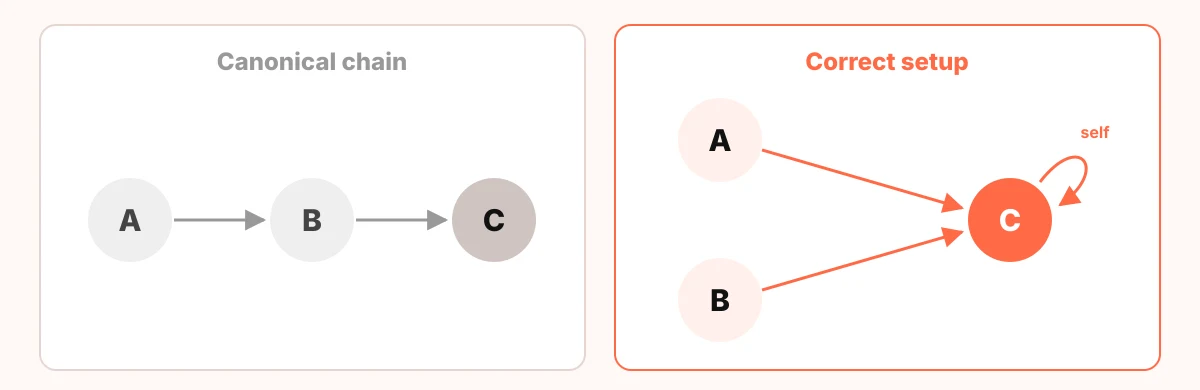
A chain is page A pointing to page B, which points to page C. A loop is A pointing to B while B points back to A. Both make your preference unclear.
Fix: Point every duplicate directly at the final canonical URL. The canonical page should only reference itself.
11. Canonical tag outside the head
Google only accepts a canonical link element inside the <head>. If invalid HTML, like a <div> or an extra <body> tag, appears early in the code, the browser closes the head too soon. Any canonical below that point gets ignored.
Fix: Validate the head section and remove anything that doesn’t belong there. We hit this on our own WordPress site, where custom HTML widgets containing full <html>, <head> and <body> wrappers triggered head and body errors in Screaming Frog. Pasting only the inner component code into those widgets fixed it.
12. Canonical tag combined with noindex
A canonical says “index this other URL instead.” A noindex says “don’t index this.” Put both on one page and Google gets mixed messages. Google’s documentation also advises against using noindex to choose a canonical within a single site.
Fix: Use one method per page. If a page is a duplicate, use the canonical alone. If it should never appear in search, use noindex alone.
13. Sitemap and internal links point to non-canonical URLs
Your tag says /pricing/, but the main menu links to /pricing and the sitemap lists /pricing?ref=nav. Each of those is a vote for a different URL.
Fix: List only canonical, 200-status, indexable URLs in your XML sitemap. Update menus, footers, breadcrumbs and in-content links to use the canonical version. Our guide to internal linking for AI and SEO shows how to audit those links.
14. Hreflang and canonical conflicts
On multilingual sites, a French page should not canonicalize to the English page. That tells Google the French version is a duplicate, and it can drop out of French results. Hreflang tags that point to non-canonical URLs cause similar trouble.
Fix: Give each language or regional version a self-referencing canonical. Use hreflang to connect the versions, and make every hreflang URL a canonical URL.
15. JavaScript changes the canonical after rendering
Google processes canonicals twice: once in the raw HTML and again after rendering JavaScript. If the raw HTML says one URL and your JavaScript sets another, Google sees two answers. Google added guidance on this to its JavaScript SEO documentation in December 2025.
Fix: Set the canonical in the original HTML and make sure JavaScript never changes it. If you can only set it with JavaScript, leave it out of the raw HTML completely so there is one value.
16. Near-duplicate pages Google merges on its own
Location pages, service pages or product pages that share almost all their copy, with only a city or product name swapped, can look like duplicates to Google. Each page may have a correct self-referencing canonical, and Google can still cluster them and pick one. This canonical issue is a common cause of the “Duplicate, Google chose different canonical than user” status.
Fix: Give each page content that only fits that page: local details, prices, examples, photos and FAQs. If two pages can’t be made truly different, merge them into one and 301 redirect the other.
17. Separate mobile (m.) and AMP URLs
Older sites may serve mobile visitors from m.example.com or keep AMP copies at /amp/ URLs. Each one is a second version of every page.
Fix: The cleanest option is one responsive site, with 301 redirects from the old mobile URLs. If you keep separate mobile pages, the desktop page links to the mobile URL with rel="alternate", and the mobile page canonicalizes back to desktop. AMP pages should canonicalize to the regular HTML page, which links to its AMP version with rel="amphtml".
How to Find Canonical Issues on Your Site
To find canonical issues, start in Google Search Console to see what Google actually chose, then crawl your site to find the cause. Search Console shows the symptoms through URL Inspection and the Page indexing report. A crawler like Screaming Frog shows the broken tags, chains and conflicts behind them.
Step 1: Inspect key URLs in Search Console
Open the URL Inspection tool and paste in your most important URLs: homepage, top service or product pages, and pages that lost rankings. Under Page indexing, compare two fields:
- User-declared canonical: the URL your tag points to
- Google-selected canonical: the URL Google actually uses
If they match, that page is fine. If they differ, you’ve found a canonical issue. Note both URLs and keep reading.
Step 2: Read the Page indexing report
Go to Indexing, then Pages, then scroll to “Why pages aren’t indexed.” Three canonical statuses appear here, and they don’t all need fixing:
| Status in Search Console | What it means | Action |
|---|---|---|
| Alternate page with proper canonical tag | A duplicate correctly points to its canonical, and Google agrees | Usually none. This is the system working. |
| Duplicate without user-selected canonical | Google found duplicates with no canonical tag and picked one itself | Add canonical tags so you choose, not Google |
| Duplicate, Google chose different canonical than user | Google ignored your tag and picked another URL | Find the conflicting signals, or make the pages truly different |
The third status is the one to prioritize. It means your tag and the rest of your site disagree.
Step 3: Crawl the site
Run a full crawl with Screaming Frog, Ahrefs Site Audit or Semrush Site Audit. In Screaming Frog, the Canonicals tab has filters that map straight to the canonical issues above:
- Missing: pages with no canonical tag (issue 6)
- Multiple: pages with more than one tag (issue 7)
- Canonical Is Relative: relative URLs in the tag (issue 8)
- Non-Indexable Canonical: tags pointing to redirects, errors or noindex pages (issue 9)
- Outside head: tags Google won’t read (issue 11)
Also check the Sitemaps tab for non-canonical URLs listed in your sitemap (issue 13).
Step 4: Compare raw HTML with rendered HTML
If your site runs on React, Next.js, Vue or a similar framework, crawl twice: once with JavaScript rendering off and once with it on. Compare the canonical URL in both crawls. Any page where the two differ has issue 15.
In Search Console, the URL Inspection tool’s “View crawled page” option shows the HTML Google rendered, which lets you check a single page quickly.
Step 5: Test your URL variants by hand
Type each version of your homepage into the browser: HTTP and HTTPS, with and without www, with and without a trailing slash. Every version should land on one final URL through a single 301 redirect. Repeat the test on one inner page, since some servers handle the homepage and inner pages differently.

Step 6: Check non-HTML files
PDFs and other files can’t hold a canonical tag. If you publish a PDF version of a page, check its HTTP response headers for a canonical Link header. It looks like this:
Link: <https://example.com/guide/>; rel="canonical"How to Fix Canonical Issues: Pick the Right Method
The right fix depends on one question: does the duplicate URL need to stay live for users? If not, use a 301 redirect. If it does, use a canonical tag. If the page shouldn’t appear in search at all, use noindex alone. Mixing these methods on one URL is what causes most stubborn canonical issues.
Use this table to match each situation with its fix:
| Situation | Best fix | Why |
|---|---|---|
| HTTP, non-www, old or moved URLs | 301 redirect | Users and bots never need the old version |
| Tracking, sort or session parameters | Canonical tag to the clean URL | Marketing and site features still need those URLs to work |
| Color or size variants with no separate search demand | Canonical tag to the main product | One strong page beats many weak ones |
| Variants people actually search for | Separate indexable page, self-canonical, unique copy | It deserves its own ranking |
| Internal search results, thin filter pages | Noindex only | They shouldn’t rank at all |
| PDF copy of an HTML page | Canonical Link HTTP header | Files can’t hold an HTML tag |
| Language or country versions | Self-canonical on each, plus hreflang | They are alternates, not duplicates |
| Your content republished on a partner site | Ask the partner to noindex their copy | Google’s current advice for syndication |
| Google picked a different canonical | Align redirects, links and sitemap, or make the pages different | Your tag is outvoted by other signals |
A note on syndicated content
Many guides still tell you to ask syndication partners for a cross-domain canonical tag pointing back to your original. Google changed that advice in 2023.
Google now says the canonical tag isn’t recommended for syndicated copies, because a partner’s page usually carries different navigation, branding and extra content around your article. Its recommendation is that partners block their copy from indexing with noindex. If a partner won’t agree to that, expect their copy to compete with yours in search.
Don’t use these as canonical fixes
- robots.txt blocking: Google can’t crawl a blocked URL, so it never sees the canonical tag on it. Links pointing to that URL can’t be consolidated either.
- The URL removal tool: It hides all versions of a URL from search for a while. It doesn’t pick a canonical.
- Different URLs in different signals: Don’t list one URL in your sitemap and canonicalize to another. Google’s documentation warns against this directly.
After you fix
Re-crawl the site to confirm your canonical issues are resolved. Then open the matching status in the Search Console Page indexing report and click Validate Fix.
Canonical Issues by Platform
Every major CMS adds self-referencing canonical tags by default, but each one has its own canonical issues to watch for. WordPress sites tend to get duplicate tags from themes and plugins. Shopify creates extra product paths through collections. JavaScript frameworks risk changing the canonical after rendering. Knowing your platform’s habits tells you where to look first.
WordPress
Yoast SEO, Rank Math and similar plugins add a self-referencing canonical to posts, pages and archives. Most WordPress canonical problems come from what surrounds those plugins:
- A theme or second SEO plugin printing its own canonical tag (issue 7)
- Custom canonical fields left pointing to old or staging URLs after a migration
- Comment reply links adding
?replytocom=parameters to post URLs
To set a custom canonical on one post, open the Advanced section of the Yoast SEO panel or the Advanced tab in Rank Math, then fill in the Canonical URL field. Leave that field blank on normal pages so the plugin keeps its self-referencing default.
Shopify
Shopify makes products reachable at both /products/product-name and /collections/collection-name/products/product-name. The canonical tag on the collection path points to the /products/ URL, which is correct.
The weak spot is internal linking. Some themes, especially older ones, link to the collection-path version from category pages, so your internal links point at non-canonical URLs (issue 13). Check your theme’s product card links and switch them to the plain /products/ path where possible. Variant URLs with ?variant= should also canonicalize to the main product URL.
Wix, Squarespace and Webflow
These builders add self-referencing canonicals automatically and let you override them per page. Problems usually come from manual overrides that someone forgot, or from a staging or default subdomain that stays publicly indexable. Confirm your live custom domain is the one in every tag.
Headless sites and JavaScript frameworks
On Next.js, Nuxt, Gatsby and similar setups, the canonical is generated in code, which is where issue 15 usually starts. Set it on the server with your framework’s metadata tools, such as alternates.canonical in the Next.js Metadata API or useHead() in Nuxt.
Test a sample of templates after every major release, since a single shared layout change can create canonical issues across thousands of pages.
Canonical Issues, Backlinks and AI Search
Canonical issues decide which URL gets credit for your backlinks and which URL gets cited in AI answers. When Google clusters duplicates correctly, links to any version support the canonical. When it doesn’t, links land on a URL Google treats as a separate, weaker page. So fix canonical issues before you build links to a page.
Check the canonical before you build links
Before any link building campaign, run each target page through URL Inspection. Confirm the Google-selected canonical matches the exact URL you plan to share with publishers: same protocol, same www choice, same trailing slash and no tracking parameters.
Building links to a URL Google doesn’t treat as canonical is like paying rent on the wrong apartment. The value exists, but it doesn’t reach the place you live.
Reclaim links that point to variants
Open your backlink report and filter target URLs for HTTP versions, parameter URLs, old paths and uppercase variants. Our Ahrefs backlink checker guide shows how to pull that list. Redirect each variant to the canonical URL, then use link reclamation to ask high-value sites to link straight to the final page.
Why AI search makes this more important
Google AI Overviews and AI Mode draw on Google’s index, so the URL Google picks as canonical is the URL that gets surfaced. Bing also supports rel=canonical, and other AI assistants use web search results to find pages to cite. A messy canonical setup means a parameter URL or an old HTTP page could be the version that shows up in an AI answer, with your tracking codes attached.
Canonical Issues Prevention Checklist
The easiest canonical issue to fix is the one that never ships. Most problems start during launches, migrations, theme changes and new templates. Run this checklist when you set up a site, then again after any change that touches URLs, templates or plugins. A monthly crawl catches anything that slips through between releases.
- One preferred version of the domain, with 301 redirects from all others
- One URL format: lowercase, consistent trailing slash rule
- A single, self-referencing canonical on every indexable page
- Absolute URLs in every canonical tag, pointing to the live domain
- Every canonical target returns a 200 status and is indexable
- No canonical chains, loops or canonical plus noindex on one page
- Canonical tag inside a valid head section
- Raw HTML and rendered HTML show the same canonical
- XML sitemap lists canonical URLs only
- Menus, breadcrumbs and in-content links use canonical URLs
- Paginated pages self-canonicalize
- Each language version self-canonicalizes, with hreflang to the others
- Syndication partners noindex their copies
- Monthly check of the “Duplicate, Google chose different canonical than user” status in Search Console
Build Links to the Right URL
Fixing canonical issues makes every backlink count toward the page you want to rank. Our managed link building team checks each target page’s canonical before outreach starts, so the authority you earn never lands on a duplicate.
Explore Managed Link BuildingFAQs About Canonical Issues
What is a canonical issue in SEO?
It’s when search engines index a different URL than the one you want ranked for a page. For example, Google shows example.com/shoes?sort=price in results while your clean example.com/shoes/ page stays out of the index.
Do canonical tags pass link equity?
Yes, in effect. When Google accepts your canonical, it consolidates link signals from the duplicates onto the canonical URL. If Google rejects the tag, that consolidation doesn’t happen, which is why the signals around the tag matter.
Can a canonical tag point to a page with different content?
It shouldn’t. Canonical tags are meant for duplicate or near-identical pages, and Google tends to ignore them between pages that don’t match. If a page is retired and replaced by a different one, use a 301 redirect.
Does a canonical tag stop Google from crawling a page?
No. Google keeps crawling canonicalized URLs, usually less often than the canonical itself. If a huge set of parameter URLs is eating crawl time, fix the internal links that create them first.
Can a canonical tag point to another domain?
Yes, when you publish the same content on two sites you own. For copies on other publishers’ sites, ask them to noindex their copy instead, as covered in the syndication section above.
How long does it take to fix canonical issues?
Google has to recrawl the affected URLs first. Important pages can update within days, while large sites with many duplicates can take several weeks. Use Validate Fix in Search Console to track progress.
