
The best infographic tools in 2026 are Canva for fast everyday designs, Venngage for business infographics, Infogram and Datawrapper for data-heavy charts, and Napkin AI or Google Gemini for AI-generated visuals. Each one solves a different problem, so the right pick depends on your content, your skill level, and your budget.
An infographic tool is software that helps you turn data, steps, or ideas into a visual that people can understand in seconds. Some tools give you templates and a drag-and-drop editor. Others focus on charts and maps built from spreadsheets. A newer group uses AI to create a first draft from a prompt or a block of text.
This guide reviews the 18 best infographic tools in detail, grouped by what they do best. For every tool, you’ll see what it does, its key features, who it suits, honest pros and cons, current pricing, and a clear verdict. You’ll also find a comparison table, a breakdown of free-plan limits, and answers to the questions people ask most before they choose.
Table of Contents
What Makes the Best Infographic Tools Stand Out?
The best infographic tools combine good templates, accurate charts, easy editing, and useful export options, without hiding key features behind confusing limits. Before you compare tools, it helps to know which features actually affect your final result and which ones are nice extras you may never use.
Here are the seven features that separate the best infographic tools from average ones:
- Infographic templates: Real infographic layouts (timelines, processes, comparisons, statistics) save far more time than generic social media templates you have to rebuild.
- Data handling: The ability to import a CSV, Excel file, or Google Sheet means your charts stay accurate and easy to update.
- Chart and map variety: Bar, line, pie, and donut charts are standard. Maps, pictograms, and interactive charts set the stronger tools apart.
- AI features: Useful AI creates an editable layout you can change. Less useful AI gives you a flat image that is hard to fix.
- Brand controls: Brand kits store your logo, colors, and fonts so every design stays consistent across a team.
- Export options: PNG for web, PDF for print, SVG for designers, and embed code for interactive versions on your website.
- Fair free plan: Watch for watermarks, download blocks, public-only publishing, and non-commercial rules.
Prices in this guide come from vendor pricing pages and major software directories as of October 2026. Vendors update plans often, so confirm the price on the official site before you buy.
Quick Picks: Best Infographic Tools by Use Case
No single tool wins every job. Canva is the easiest all-rounder, Venngage has the most infographic-focused templates, Datawrapper is the strongest free chart tool, and Napkin AI is the fastest way to turn text into a visual. Use this list to find your starting point, then read the full review.
- Best overall for beginners: Canva
- Best for business and report infographics: Venngage
- Best for non-designers who want guardrails: Piktochart
- Best for animated marketing content: Visme
- Best for interactive charts and reports: Infogram
- Best for data storytelling: Flourish
- Best free tool for charts and maps: Datawrapper
- Best AI text-to-visual tool: Napkin AI
- Best AI image generator for infographics: Google Gemini
- Best for teachers and trainers: Genially
- Best for researchers: Mind the Graph
- Best for professional designers: Adobe Illustrator or Figma
Best Infographic Tools Compared (2026 Table)
This table compares the 18 best infographic tools side by side on what each one is built for, free plan availability, starting paid price, AI support, and the skill level you need. Shortlist two or three options here, then read their detailed reviews to make your final choice.
| Tool | Best For | Free Plan | Paid From | AI Features | Skill Level |
|---|---|---|---|---|---|
| Canva | Fast, everyday infographics | Yes | $18/mo (Pro) | Yes (Magic Studio) | Beginner |
| Venngage | Business and report infographics | Yes (no downloads) | $19/mo ($16 annual) | Yes | Beginner |
| Piktochart | Guided layouts for non-designers | Yes | ~$10–14/mo annual | Yes | Beginner |
| Visme | Animated, interactive marketing visuals | Yes (limited) | $12.25/mo annual | Yes | Intermediate |
| Adobe Express | Branded social graphics | Yes | $9.99/mo | Yes (Firefly) | Beginner |
| Infogram | Interactive charts, maps, reports | Yes (non-commercial) | $19/mo annual | Limited | Intermediate |
| Flourish | Data storytelling | Yes (public) | Custom quote | No | Intermediate |
| Datawrapper | Clean charts, maps, tables | Yes (unlimited) | $599/mo (Custom) | No | Beginner |
| Tableau Public | Explorable dashboards | Yes (public only) | Free | No | Advanced |
| Napkin AI | Text-to-diagram visuals | Yes (500 credits/week) | $9/mo annual | Core feature | Beginner |
| Google Gemini | AI infographic images | Yes (usage limits) | Google AI plans | Core feature | Beginner |
| Microsoft PowerPoint | Infographics inside decks | Web version | Microsoft 365 | Yes (Designer, Copilot) | Beginner |
| Genially | Interactive learning content | Yes | ~$12.50/mo | Yes | Intermediate |
| Animaker | Animated video infographics | Yes | ~$20/mo | Yes | Intermediate |
| Mind the Graph | Scientific illustrations | Yes (watermark) | ~$14/mo | Limited | Intermediate |
| Easelly | Simple, low-budget infographics | Yes | ~$4/mo | No | Beginner |
| Figma | Custom design and team work | Yes | Paid seats | Yes | Advanced |
| Adobe Illustrator | Fully custom, print-ready work | Trial only | Creative Cloud | Yes (Firefly) | Advanced |
All-in-One Infographic Makers
All-in-one infographic makers combine templates, icons, charts, and a drag-and-drop editor in one place. They are the best infographic tools for marketers, teachers, students, and small businesses who need professional visuals quickly without design training. Their main limit is heavy data, where dedicated chart tools are more precise.
1. Canva
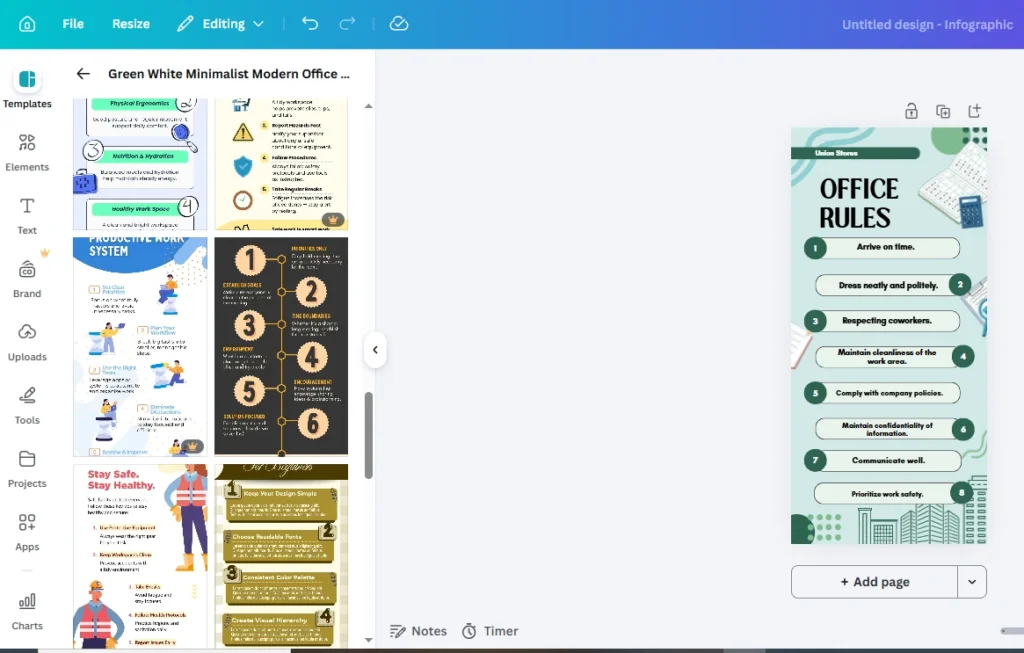
Best for: beginners and speedFree plan: YesPaid from: $18/mo
Canva is the most widely used design platform for non-designers, and it’s often the first tool people try for infographics. You pick a template, swap in your text and icons, and resize the result for social media, a presentation, or print. Most people can produce a clean infographic within 15 to 20 minutes on their first try, which is why it ranks among the best infographic tools for beginners.
Canva’s strength is range. One account covers infographics, social posts, presentations, documents, and videos, so you don’t need a separate tool for each format. Canva also owns Flourish, and its Business plan includes Flourish features, which lets teams drop interactive data charts straight into their designs.
The trade-off appears with data. Canva’s built-in charts handle simple bar, line, and pie charts well, but you can’t build complex or live-updating visualizations. Popular templates are also used by millions of people, so you’ll need to customize them to avoid a familiar look.
Key features
- Large library of infographic templates for timelines, lists, processes, and statistics
- Magic Studio AI tools for layout ideas, text writing, and image generation
- Built-in charts with data you can paste or type
- Brand Kit for logos, colors, and fonts (paid plans)
- One-click resize to turn one infographic into multiple formats (paid plans)
- Real-time collaboration and comments for teams
Pros
- Very short learning curve
- Generous free plan
- Huge asset library of photos, icons, and fonts
- Works on web, desktop, and mobile
Cons
- Charting is basic for data-heavy work
- AI usage is capped each month
- Popular templates can look generic
- Business plan is billed per person
Pricing
- Free: $0
- Pro: $18/month or $180/year for one person
- Business: $25 per person per month, or $250 per person per year
- Enterprise: Custom pricing
Verdict: Canva is one of the best infographic tools to start with if you want attractive infographics fast and don’t need advanced data features. Pair it with Flourish or Datawrapper when your numbers get complex.
2. Venngage
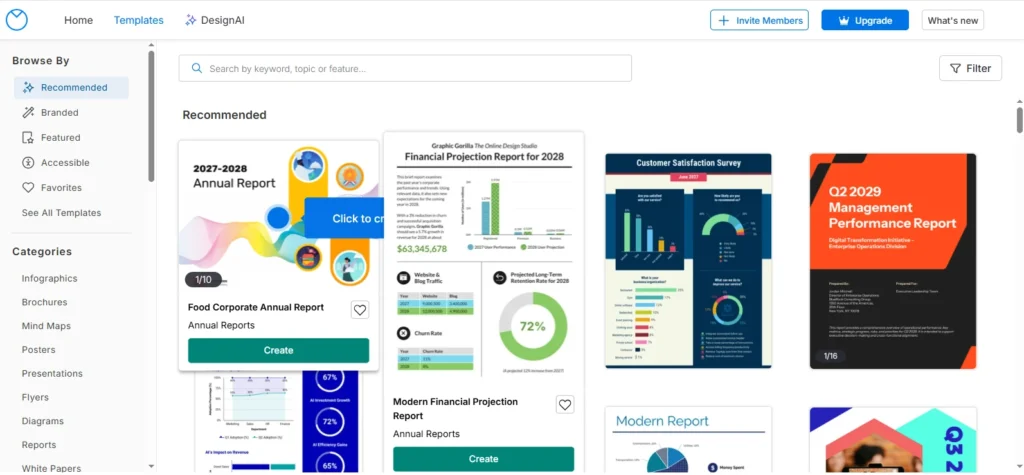
Best for: business infographicsFree plan: YesPaid from: $16/mo annual
Venngage was built specifically for infographics, which sets it apart from most of the best infographic tools that started as general design apps. Templates are grouped by infographic type, such as statistical, informational, timeline, process, and comparison, so you start with the right structure instead of forcing a social post into an infographic shape.
Venngage says it offers more than 7,500 infographic templates and over 40,000 icons. Its AI infographic generator creates a first draft from a short prompt, and the auto-branding feature applies your brand colors and fonts automatically. That makes it practical for marketing teams, HR departments, and consultants who produce reports and one-pagers regularly.
Venngage also includes accessibility features such as contrast checks, which help when your content must meet accessibility standards. The biggest drawback is the free plan: you can design and share a link, but downloading PNG or PDF files requires a paid plan.
Key features
- 7,500+ infographic templates sorted by infographic type
- AI infographic generator that builds a draft from a prompt
- Auto-branding and brand kits for consistent designs
- Charts, data widgets, and a map maker
- Accessibility checks for color contrast and readability
- Real-time team collaboration on paid plans
Pros
- Infographic-first template library
- Strong for business reports and one-pagers
- Good brand and accessibility tools
Cons
- Free plan blocks downloads
- Business tier is a big jump for solo users
- Less useful for non-infographic content
Pricing
- Free: $0 (share links only)
- Premium: $19/month, or $16/month billed annually
- Business: $24/month billed annually
- Enterprise: Custom pricing
Verdict: Venngage is one of the best infographic tools for businesses that create infographics often and want templates built for that exact purpose. Budget for a paid plan, since the free version is mainly for testing.
3. Piktochart
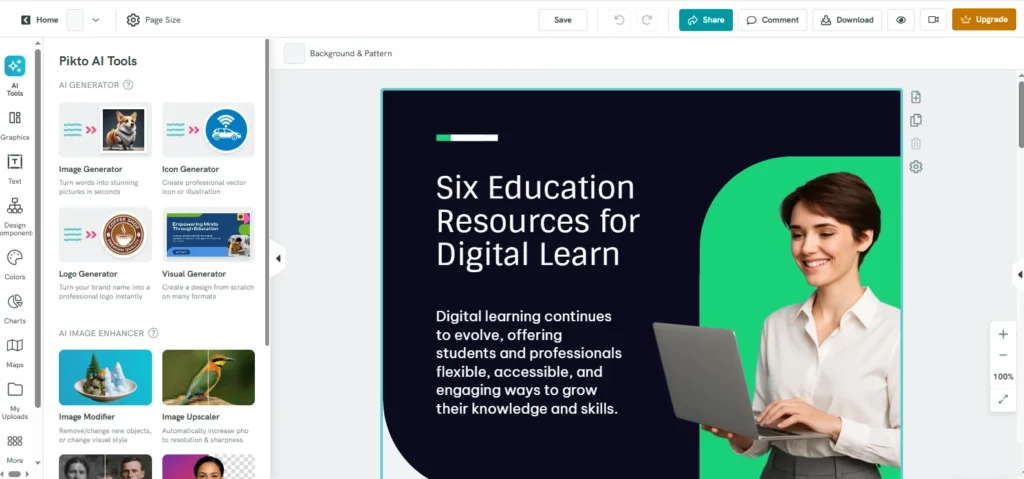
Best for: non-designersFree plan: YesPaid from: ~$10–14/mo annual
Piktochart is designed for people who have never made an infographic before, and it’s one of the best infographic tools for first-timers. Its block-based editor divides a design into sections, so you can edit, move, or delete one block without breaking the rest of the layout. That structure makes mistakes less likely and keeps designs tidy.
The platform covers infographics, reports, presentations, posters, and social graphics. Paid plans include AI visual generations, a library of more than 5 million pro icons, illustrations, and 3D graphics, and brand assets on the Business tier. Piktochart also offers deep discounts for educators, students, and nonprofits, which makes it popular in schools and charities.
The downside is flexibility. Experienced designers may find the block system restrictive, and pricing shown on Piktochart’s pages differs by region, so check the price in your own currency.
Key features
- Block-based editor that protects your layout
- Templates for infographics, reports, and presentations
- AI visual generation (allowance depends on plan)
- 5 million+ pro icons, illustrations, and 3D graphics on paid plans
- Brand assets (colors, fonts, logos) on Business
- Special pricing for education and nonprofits
Pros
- Very hard to “break” a design
- Good report templates
- Large education and nonprofit discounts
Cons
- Less creative freedom
- Region-based pricing can confuse buyers
- Fewer chart options than data tools
Pricing
- Free: $0
- Pro: roughly $10–$14 per member/month billed annually, depending on region
- Business: roughly $17–$24 per member/month billed annually
- Education: Pro from $39.99/year; Nonprofit: Pro from $60/year
- Enterprise: Custom pricing
Verdict: Among the best infographic tools for beginners, pick Piktochart if you want structure and simplicity over creative freedom. It’s especially good value for teachers, students, and nonprofits.
4. Visme
Best for: animated marketing visualsFree plan: YesPaid from: $12.25/mo annual
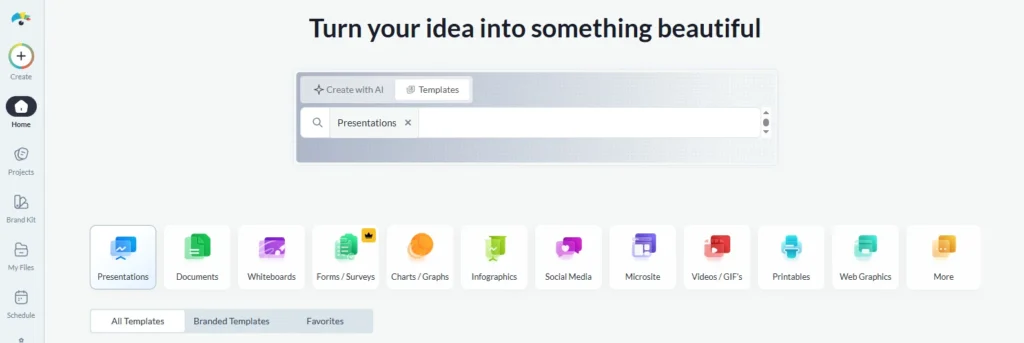
Visme is a visual content platform that covers infographics, presentations, documents, and social graphics. What sets it apart from the other best infographic tools is motion: you can add animations, transitions, hover effects, and clickable elements, so an infographic can work as an interactive web asset rather than a static image.
Visme includes built-in charts, data widgets, and maps, plus AI tools for generating designs and text. Higher plans add brand kits, team workspaces, and analytics on how people view your content. Enterprise customers also get security features such as SSO, two-factor authentication, audit logs, and custom roles.
The free plan is very limited and works more like a demo. Template quality also varies, so expect to spend time adjusting layouts, spacing, and colors to meet professional standards.
Key features
- Animated and interactive infographics
- Charts, widgets, and interactive maps
- AI design and text generation
- Brand kits and team collaboration
- Content analytics and Visme forms
- Enterprise security: SSO, 2FA, audit logs
Pros
- Strong animation and interactivity
- One tool for many content formats
- Good team and enterprise features
Cons
- Free plan is mostly a test drive
- Monthly billing is expensive
- Templates often need polishing
Pricing
- Basic: Free
- Starter: $12.25/user/month billed yearly, or $29 monthly
- Pro: $24.75/user/month billed yearly, or $59 monthly
- Enterprise: Custom pricing
Verdict: Visme is one of the best infographic tools for marketing teams that want interactive or animated infographics for websites and presentations. Choose annual billing, since monthly plans cost more than double.
5. Adobe Express
Best for: branded social graphicsFree plan: YesPaid from: $9.99/mo
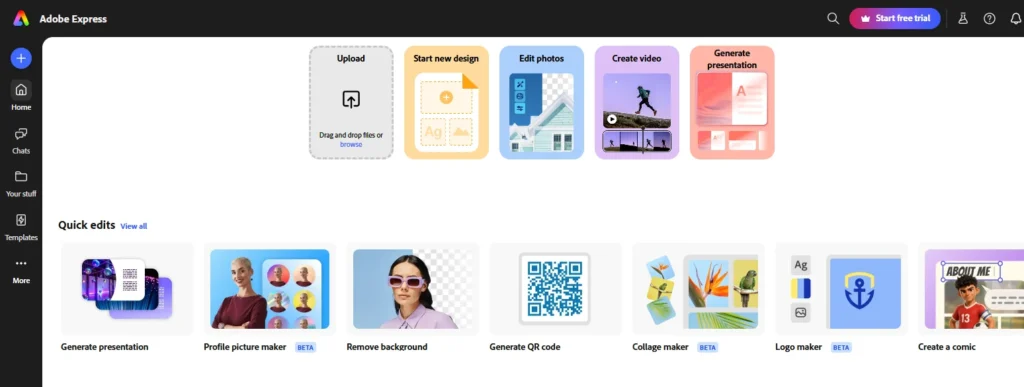
Adobe Express is Adobe’s quick-design app for people who don’t use Photoshop or Illustrator, and it earns a place among the best infographic tools for social media. It’s best for short, visual infographics for Instagram, LinkedIn, and Pinterest, where strong imagery matters more than complex data.
The Premium plan gives you all premium templates, Adobe Stock assets, Adobe Fonts, brand kits, one-click resizing, and 250 monthly generative credits for Adobe’s Firefly AI. Billing is month to month, which makes it easy to start and stop. If your team already works in Adobe’s ecosystem, Express fits in neatly.
The weak spot is data. Adobe Express has no dedicated infographic category and limited charting, so long or number-heavy infographics are harder to build here than in Venngage or Infogram.
Key features
- Premium templates, Adobe Stock, and Adobe Fonts
- Firefly generative AI for images and text effects
- Brand kits and one-click resize
- 100GB storage on Premium
- Integration with other Adobe apps
Pros
- High-quality stock and fonts
- No annual commitment needed
- Clear AI credit allowance
Cons
- Weak charting tools
- Few true infographic templates
Pricing
- Free: $0
- Premium: $9.99/month (250 generative credits)
- Firefly Pro: $19.99/month (includes Express Premium plus more credits)
- Teams and Enterprise: Available
Verdict: Adobe Express is one of the best infographic tools for visually striking social infographics, especially for Adobe users. Choose another tool if charts and data are the heart of your design.
Best Infographic Tools for Data Visualization
Data visualization tools are the best infographic tools when numbers are the main story. They import spreadsheets, build accurate charts and maps, and create interactive embeds for websites. They offer fewer decorative templates, so many teams build charts here and finish the layout in a design tool like Canva.
6. Infogram
Best for: interactive charts and reportsFree plan: YesPaid from: $19/mo annual
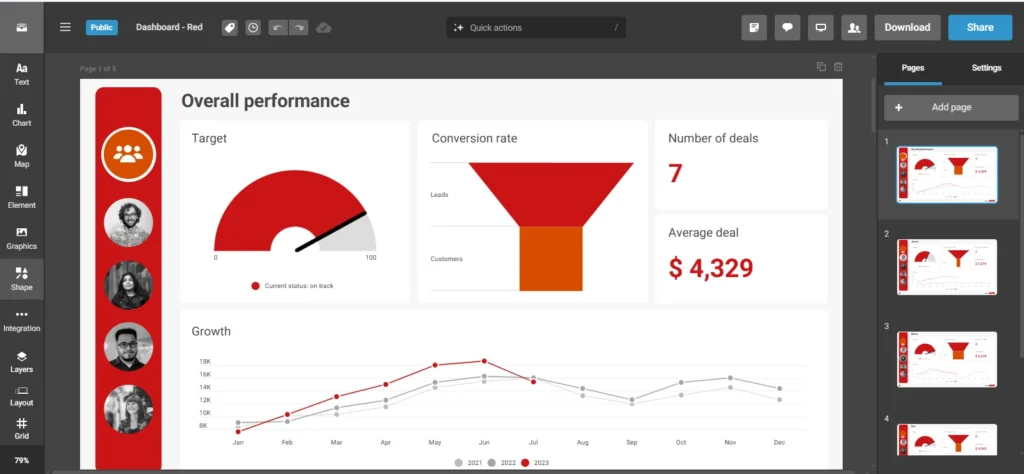
Infogram turns data into interactive charts, maps, dashboards, and multi-page reports. You can upload a spreadsheet or connect a data source, and the charts respond when readers hover or click. It’s popular with analysts, journalists, and marketing teams that publish reports online, and it’s one of the best infographic tools for data-driven content.
Even the free Basic plan includes more than 35 interactive chart types, 13 map types, data import, and object animations. Paid plans add downloads, private sharing, more projects and pages, premium templates, and live data connections. The Business tier lets you remove Infogram branding and add your own logo.
There are two important limits. The Basic plan is meant for non-commercial use only, and it doesn’t allow downloads or private sharing, so any business should plan on a paid account. The editor is also more rigid than design-first tools.
Key features
- 35+ interactive chart types and 13 map types
- Spreadsheet import and live data connections (paid)
- Multi-page reports and dashboards
- Object animations
- Password-protected sharing and downloads (paid)
- Custom logo and branding on Business and above
Pros
- Excellent chart and map variety
- Interactive web embeds
- Good for recurring reports
Cons
- Free plan is non-commercial
- No downloads on free plan
- Less design flexibility
Pricing
- Basic: Free (up to 10 projects, non-commercial)
- Pro: $19/month billed yearly
- Business, Team, Enterprise: Higher tiers with branding and collaboration
- Discounts available for education and nonprofits
Verdict: Infogram is one of the best infographic tools for interactive, data-driven infographics and reports. It’s less suited to decorative, text-led designs.
7. Flourish
Best for: data storytellingFree plan: YesPaid: custom quote
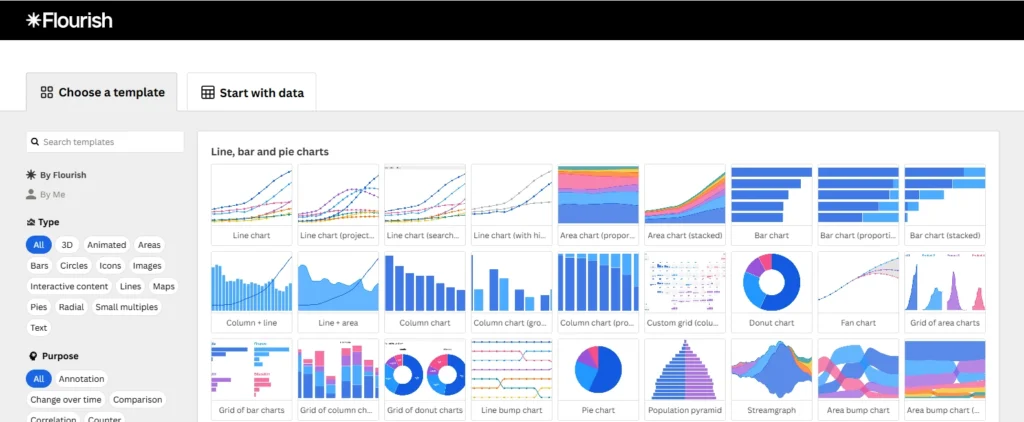
Flourish is a favorite of newsrooms and one of the best infographic tools for data journalists. It’s known for animated charts, racing bar charts, interactive maps, and “stories” that walk readers through data one step at a time. Canva acquired Flourish in 2022, and Flourish charts now work inside Canva designs.
The free plan is generous: unlimited projects, a wide range of chart and map templates, full privacy for unpublished work, and responsive graphics that look good on mobile. Free projects are published publicly with Flourish attribution. Paid Publisher plans add team features, custom themes with your font and logo, scrollytelling, live data from Google Sheets or CSV, HTML downloads, password-protected publishing, and approval workflows.
Flourish expects you to prepare data before importing it, and beginners may find the many settings overwhelming at first.
Key features
- Animated and interactive chart templates
- Step-by-step data stories and scrollytelling (paid)
- Live data from Google Sheets or CSV (paid)
- Responsive embeds for any website
- Canva integration
- Approval workflows and custom themes (paid)
Pros
- Beautiful, engaging animations
- Unlimited free projects
- Works with Canva
Cons
- Attribution on free embeds
- Paid pricing isn’t public
- Learning curve for beginners
Pricing
- Free: $0 (public publishing with attribution)
- Publisher: Custom quote
- Enterprise: Custom quote (API, SDK, analytics connector)
- Flourish features are also included in Canva Business and Enterprise
Verdict: Flourish is the best tool for turning data into an engaging story people want to scroll through. Use the free plan for public projects and upgrade only if you need branding or private publishing.
8. Datawrapper
Best for: free, clean chartsFree plan: Yes (unlimited)Paid from: $599/mo
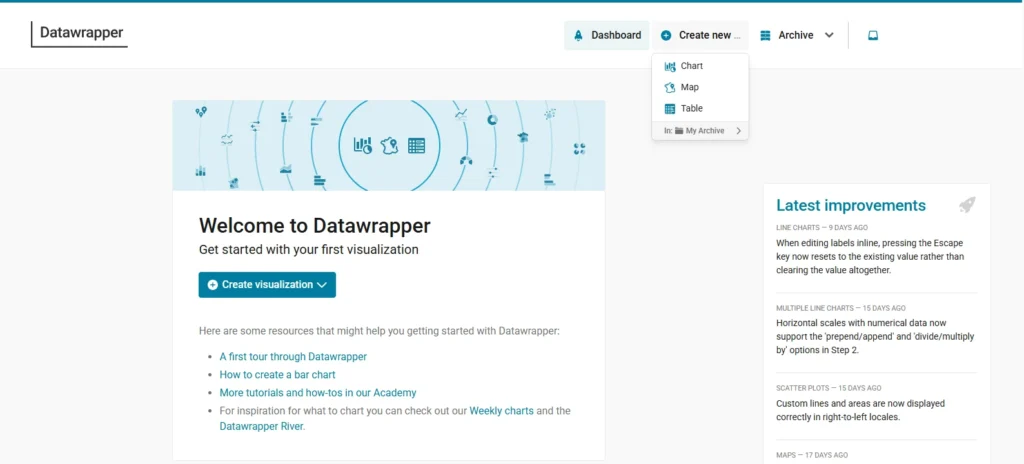
Datawrapper has one of the most generous free plans among the best infographic tools in this guide. You can create, publish, embed, and export an unlimited number of charts, maps, and tables as PNG images, with no view limits and access to the API.
The workflow is simple: paste data from a spreadsheet, choose a chart type, adjust labels and colors, and publish. The results are clean, readable, responsive on mobile, and designed with accessibility in mind. Many major newsrooms use Datawrapper for exactly that reason.
The catch is the jump to paid. Removing the “Created with Datawrapper” attribution, adding a custom theme with your fonts, and exporting SVG or PDF files all require the Custom plan, which is priced for organizations rather than individuals.
Key features
- Unlimited free charts, maps, and tables
- PNG export and responsive embeds on the free plan
- API access for automating chart creation
- Clean, accessible default styles
- Custom themes, SVG and PDF export (Custom plan)
- Self-hosting and SSO (Enterprise)
Pros
- Unlimited free use
- Fast and easy to learn
- Professional, accessible charts
Cons
- Attribution on free plan
- Very steep jump to paid
- Charts only, not full infographic layouts
Pricing
- Free: $0 (unlimited, with attribution)
- Custom: $599/month or $5,990/year (includes up to 10 users)
- Enterprise: Custom quote
- 20% discount on Custom plans for nonprofits
Verdict: Datawrapper is the best free infographic tool for charts and maps. Most individuals and small teams never need to pay for it.
9. Tableau Public
Best for: explorable dashboardsFree plan: YesPrice: Free
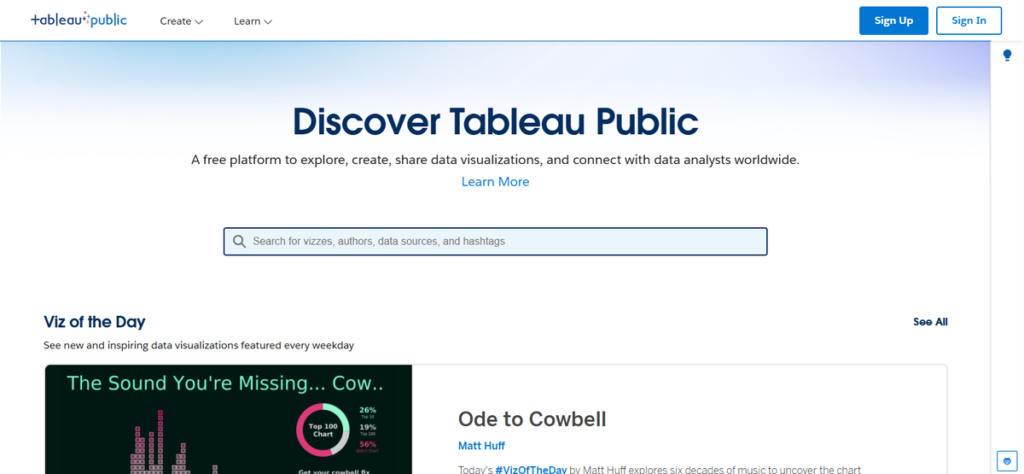
Tableau Public is the free version of Tableau, one of the best-known data analysis platforms. It handles much larger datasets than most of the best infographic tools and lets readers filter, hover, and drill into the numbers themselves.
It’s popular with students, data analysts building portfolios, and organizations sharing open data. You can embed dashboards on your website and browse a large public gallery of examples for inspiration.
The major limit is privacy: everything you save is published publicly, so it’s not suitable for confidential business data. It also has a real learning curve compared with drag-and-drop infographic makers.
Key features
- Interactive dashboards with filters and drill-downs
- Handles large datasets
- Embeddable on websites
- Public gallery of examples
Pros
- Completely free
- Deep interactivity
- Great for portfolios
Cons
- All work is public
- Steeper learning curve
- Not built for decorative design
Pricing
- Tableau Public: Free
Verdict: Choose Tableau Public for complex, explorable data you’re happy to share publicly. For simpler charts, Datawrapper is faster.
AI Infographic Generators
AI infographic generators create a first draft from a prompt or a block of text, which saves hours on structure and layout. They are the fastest-growing group among the best infographic tools, but their output still needs human checks for accurate numbers, correct spelling, and brand style before you publish.
AI works best for turning articles, outlines, or notes into a visual structure and for producing several layout options quickly. It struggles with exact data, brand consistency, and fine edits. A practical workflow is to draft with AI, then finish the design in an editor with your real numbers.
10. Napkin AI
Best for: text-to-visualFree plan: YesPaid from: $9/mo annual
Napkin AI is one of the newest names on lists of the best infographic tools. It turns written text into visuals. You paste or write a paragraph, select it, and Napkin suggests matching diagrams, flowcharts, mind maps, comparisons, and simple charts. You don’t need to write a prompt, because Napkin works directly from your content.
The visuals stay fully editable, so you can change colors, icons, labels, and layout after generation. Napkin grew quickly and passed 5 million users by late 2025, mainly among marketers, consultants, teachers, and writers who need visuals for blog posts, slides, and reports.
Napkin creates individual visuals rather than full multi-section infographics. For a long infographic, generate the pieces in Napkin and assemble them in Canva or Venngage.
Key features
- Text-to-visual generation without prompting
- Diagrams, flowcharts, mind maps, and data charts
- Unlimited editing of generated visuals
- File import
- PNG and PDF export (Napkin branding on free)
- Brand features and branding removal on paid plans
Pros
- Fastest route from text to visual
- Editable output
- Generous free credits
Cons
- Branding on free exports
- Not built for long infographics
- Works best with structured text
Pricing
- Free: $0 (500 AI credits per week)
- Plus: $9/person/month billed annually, or $12 monthly (10,000 credits/month)
- Pro: Higher tier with 30,000 credits/month
- Enterprise: Custom pricing
Verdict: Napkin AI is one of the best infographic tools for turning written ideas into clean, editable diagrams in seconds. It’s a perfect partner for bloggers and presenters.
11. Google Gemini (Nano Banana Pro)
Best for: AI infographic imagesFree plan: Yes (limits)Paid: Google AI plans
Google Gemini is the strongest AI image option among the best infographic tools here. It creates full infographic images using Nano Banana Pro, Google’s image model built on Gemini 3 Pro and released in November 2025. Its big improvement is text: it renders clear, readable text inside images in multiple languages, something older AI image tools struggled with.
Gemini can also use Google Search for context, which helps produce more accurate infographics on factual topics. Google’s NotebookLM uses the same model to turn uploaded PDFs, notes, and documents into infographics, which is useful for students and researchers. Free users get access with usage limits, and paid Google AI plans raise those limits.
The main limitation is editing. Gemini produces a flat image, not editable layers, so changing one number means regenerating the image or fixing it in another tool. It can still make occasional typos or data mistakes.
Key features
- Full infographic images from a text prompt
- Readable, multi-language text inside images
- Search-grounded content for factual topics
- NotebookLM: turn your own documents into infographics
- Available in the Gemini app, Google AI Studio, and the Gemini API
Pros
- Very polished results
- Strong text rendering
- Free tier available
Cons
- Flat, non-editable images
- Occasional errors in data or text
- Brand matching needs manual work
Pricing
- Free: Available with usage limits
- Google AI plans: Higher limits on paid subscriptions
Verdict: Gemini is one of the best infographic tools for fast, attractive infographic images, especially for explainers and education. Always double-check every number and word before you publish.
12. Microsoft PowerPoint (Designer and Copilot)
Best for: infographics inside decksFree: Web versionPaid: Microsoft 365
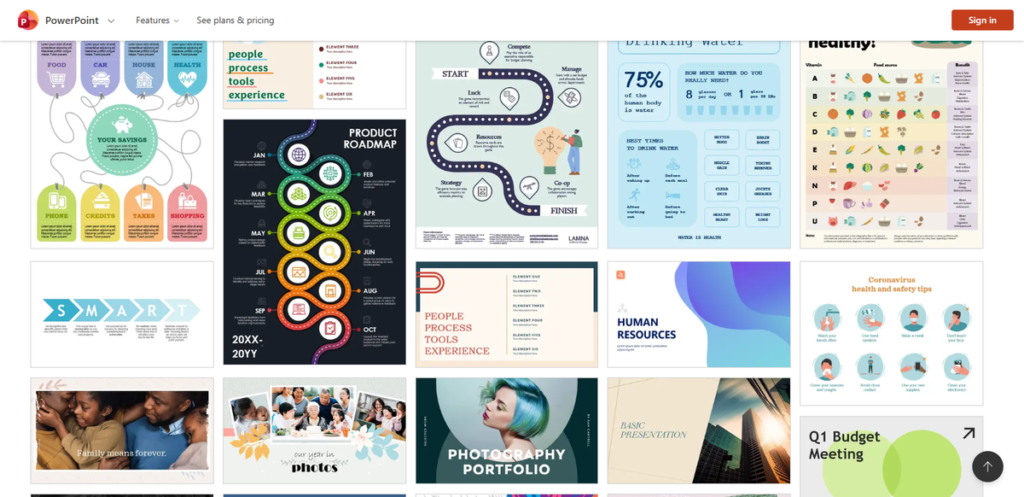
PowerPoint is an underrated entry among the best infographic tools, and many people already own it. SmartArt creates process diagrams, cycles, hierarchies, and timelines in a few clicks, and charts can link directly to Excel data so they update when your numbers change.
Designer suggests layout ideas automatically as you add content, and Copilot can draft slides and visuals from a prompt on eligible Microsoft 365 plans. You can set a custom slide size for a tall infographic, then export it as a PNG or PDF.
PowerPoint’s infographic templates feel dated next to newer tools, and tall formats are less natural to work with than in a dedicated infographic maker.
Key features
- SmartArt for processes, cycles, and hierarchies
- Charts linked to Excel data
- Designer layout suggestions
- Copilot AI on eligible Microsoft 365 plans
- Custom slide sizes and PNG/PDF export
Pros
- Already installed for most office workers
- Excel-linked charts
- Full layout control
Cons
- Dated templates
- Awkward for tall infographics
Pricing
- PowerPoint for the web: Free
- Desktop app and Copilot: Included with Microsoft 365 plans
Verdict: PowerPoint is one of the best infographic tools at no extra cost for business users who need infographics inside presentations and reports.
Interactive and Animated Infographic Makers
Interactive and animated makers are the best infographic tools for adding clicks, hover effects, motion, and video to your visuals. They work best for training, classrooms, and social video, where engagement matters more than print. Expect a longer build time than static designs, so use them where interaction adds real value.
13. Genially
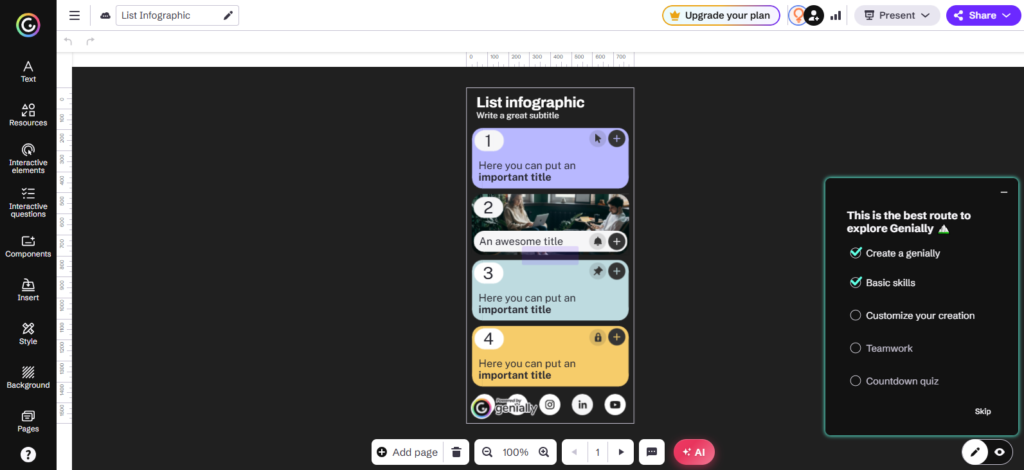
Best for: interactive learning Free plan: Yes Paid from: ~$12.50/mon
Genially specializes in interactive content, which makes it one of the best infographic tools for engagement. You can add hotspots, pop-up windows, animations, quizzes, and game elements to an infographic, so readers explore it rather than just look at it. That makes it a favorite among teachers, corporate trainers, and e-learning creators.
The free plan includes all interactions, animations, and effects, plus more than 1,000 free templates and resources. You can import PDF, PowerPoint, and Google Slides files and make them interactive. Paid plans add premium templates, more AI credits, watermark removal, brand kits, and analytics.
The interface is busy, and new users often take a while to find their way around. Several plan tiers with similar names can also make pricing harder to compare.
Key features
- Hotspots, pop-ups, animations, and quizzes
- 1,000+ free templates and resources
- Import PDF, PowerPoint, and Google Slides
- AI credits for content creation
- Brand kit and analytics on higher plans
Pros
- Excellent interactivity
- Strong free plan
- Great for education and training
Cons
- Busy interface
- Confusing plan structure
- Less useful for print
Pricing
- Free: $0
- Paid plans: Start around $12.50/user/month, with higher Pro, Master, and team tiers
- Separate plans for education
Verdict: Genially is the best infographic tool for interactive learning content. Choose a static tool if your infographic will mostly be printed or shared as an image.
14. Animaker
Best for: animated video infographicsFree plan: YesPaid from: ~$20/mo
Animaker is a video creation platform that supports animated infographics. You build scenes with characters, icons, charts, and motion effects, then add voiceover and music to create explainer videos.
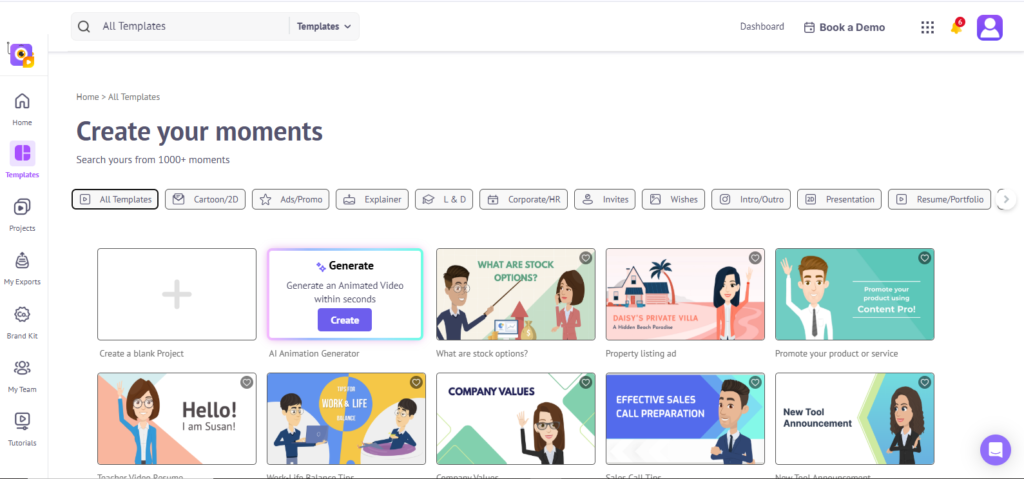
Video infographics perform well on social media, YouTube, and product pages, where motion grabs attention faster than a static image. Animaker includes a large library of characters and animated assets, plus AI tools to speed up production.
The trade-off is time. Building scenes and timing transitions takes much longer than designing a static infographic, and data tools are limited.
Key features
- Animated characters, icons, and scenes
- Motion effects and transitions
- Voiceover and music support
- AI animation tools
Pros
- Polished animation
- Large character library
- Great for social video
Cons
- Slow for simple projects
- Limited data features
Pricing
- Free: $0
- Paid plans: Start around $20/month
Verdict: Of the best infographic tools for video, use Animaker when you need an infographic as a short video. For static visuals, an all-in-one maker is faster.
Specialist and Professional Infographic Software
These specialist picks among the best infographic tools serve a narrow audience extremely well. Mind the Graph targets researchers, Easelly targets tight budgets, and Figma and Adobe Illustrator give professional designers full creative control. Choose one of these when general infographic makers can’t match your field, budget, or quality standards.
15. Mind the Graph
Best for: science and researchFree plan: YesPaid from: ~$14/mo
Mind the Graph is built for scientists, researchers, and students. It offers thousands of scientifically accurate illustrations, including cells, organs, molecules, lab equipment, and plants, so you don’t need to draw them yourself.
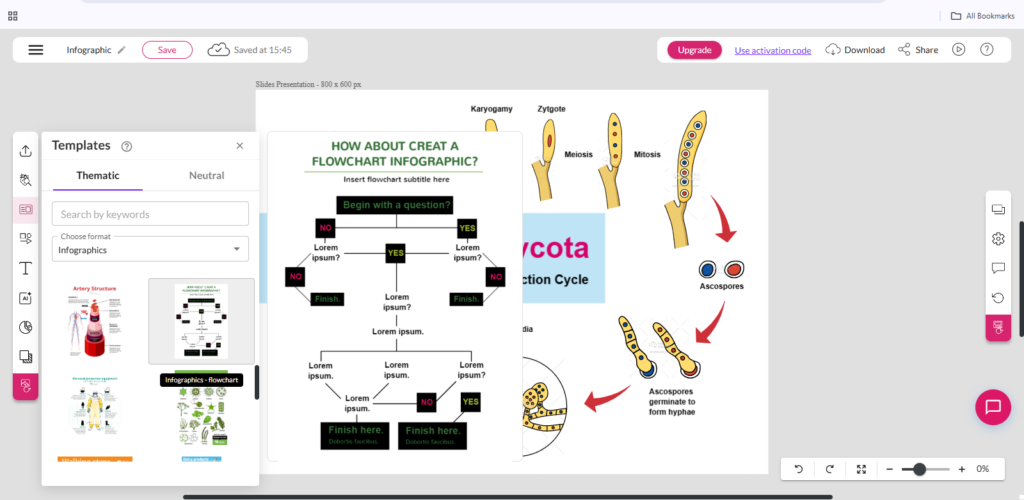
Researchers use it to create graphical abstracts for journal submissions, conference posters, slides, and research summaries. Templates follow academic formats, which saves time when you need to meet publication standards.
The free plan adds a watermark, and editing focuses on swapping illustrations rather than redesigning layouts, which can feel limiting outside academic work.
Key features
- Thousands of scientific illustrations
- Templates for graphical abstracts and posters
- Academic-focused layouts
Pros
- Unique scientific library
- Saves hours of drawing
Cons
- Watermark on free plan
- Limited layout freedom
Pricing
- Free: $0 (with watermark)
- Paid plans: Start around $14/month
Verdict: Mind the Graph is the best infographic tool for scientific and academic visuals. Other users will get more from a general-purpose maker.
16. Easelly
Best for: tight budgetsFree plan: YesPaid from: ~$4/mo
Easelly is the most affordable pick among the best infographic tools in this guide. It provides basic templates with pre-set backgrounds, shapes, fonts, and simple charts, which works well for school projects and quick, simple visuals.
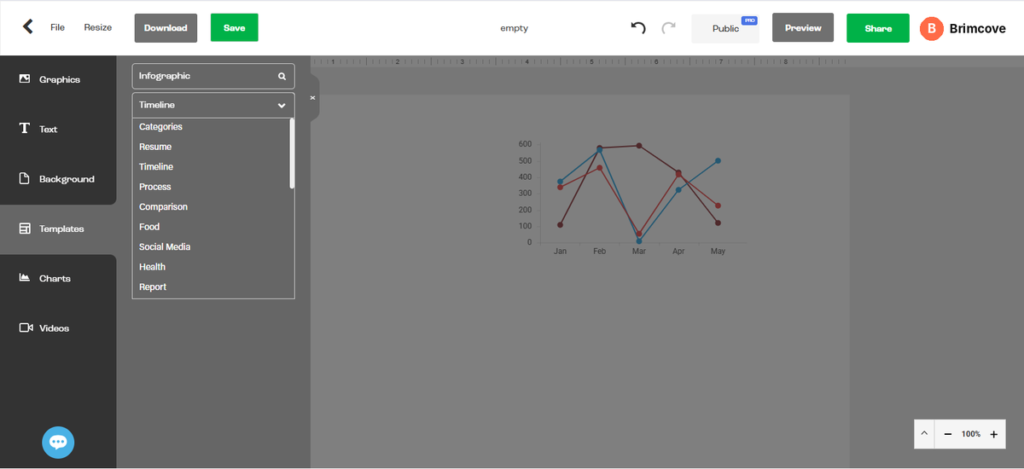
Its low price makes it attractive to students and small organizations with tight budgets. Student pricing is even lower than the standard plan.
Templates aren’t clearly categorized, so finding the right starting point can take time. Customization is also limited compared with Canva or Venngage.
Key features
- Basic infographic templates
- Shapes, backgrounds, and simple charts
- Low-cost plans with student pricing
Pros
- Very affordable
- Easy for beginners
Cons
- Poor template organization
- Limited customization
Pricing
- Free: $0
- Paid: Around $4/month, with student plans around $2/month
Verdict: Easelly works for simple infographics on the smallest budget. For a few dollars more, Canva Pro offers far more.
17. Figma
Best for: design teamsFree plan: YesPaid: per seat
Figma is a professional design tool used by product and brand designers. It gives you pixel-level control, reusable components, auto layout, and real-time collaboration, so several designers can work on the same infographic at once.
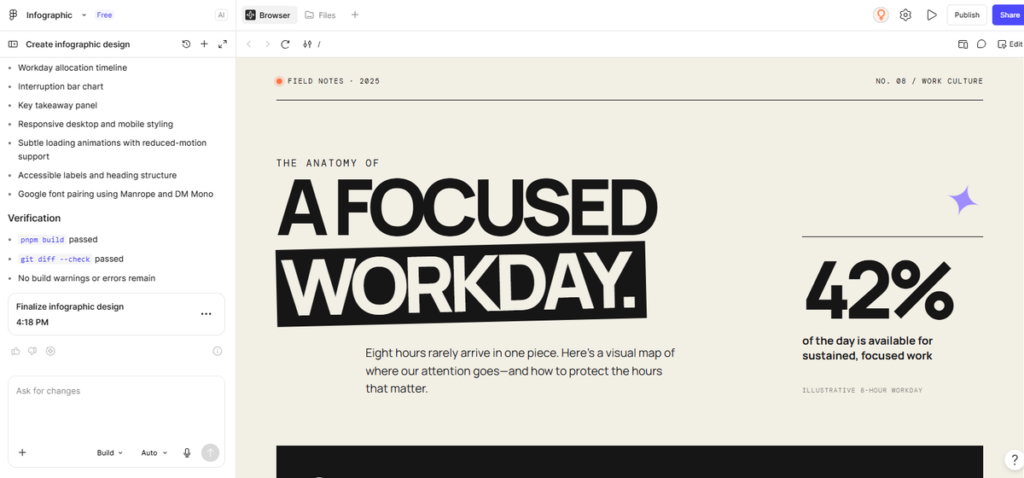
Figma’s Community offers free infographic kits, icon sets, and chart plugins that speed up the process. Because designs are built from components, it’s easy to create a consistent series of infographics that all follow your brand system.
Figma isn’t a template tool. Non-designers will find it slow, and you’ll need design skills to get great results.
Key features
- Precise vector design and auto layout
- Reusable components and design systems
- Real-time multiplayer collaboration
- Community infographic kits and chart plugins
Pros
- Full creative control
- Excellent for teams
- Large free community library
Cons
- Requires design skills
- No built-in data import for charts
Pricing
- Starter: Free
- Paid seats: Professional, Organization, and Enterprise plans
Verdict: Figma is one of the best infographic tools for design teams creating branded infographic series. Beginners should start with Canva instead.
18. Adobe Illustrator
Best for: fully custom workFree: Trial onlyPaid: Creative Cloud
Adobe Illustrator is the industry standard for vector graphics. Agencies and professional designers use it to create completely custom, print-ready infographics with unique illustrations that no template tool can match.
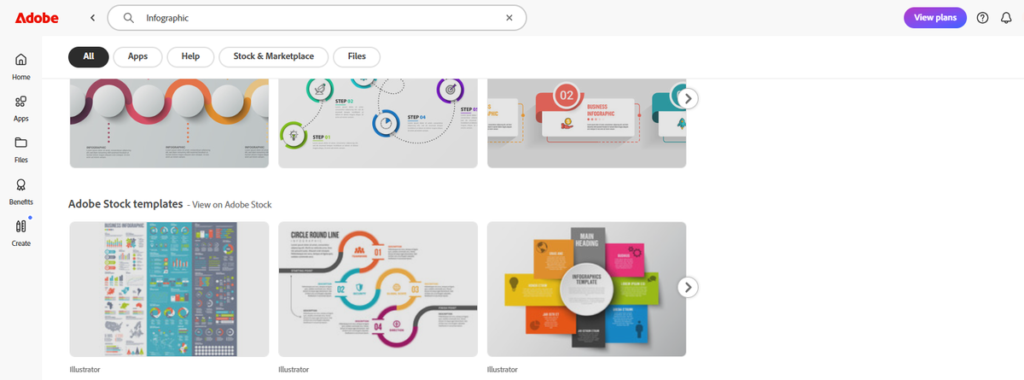
Vector graphics scale to any size without losing quality, which matters for billboards, large posters, and print reports. Illustrator also includes Firefly generative AI features and connects with other Creative Cloud apps.
It has the steepest learning curve on this list, includes no ready infographic templates, and requires a paid subscription after the free trial.
Key features
- Professional vector design tools
- Print-ready output at any size
- Firefly generative AI features
- Creative Cloud integration
Pros
- Unlimited creative freedom
- Best print quality
Cons
- Steep learning curve
- No infographic templates
- Subscription required
Pricing
- Free trial: Available
- Paid: Creative Cloud subscription
Verdict: Illustrator is the best infographic tool for professional designers who need one-of-a-kind, print-quality work.
Free vs Paid: Free Infographic Tool Limits You Should Know
Many of the best infographic tools offer free plans, but each one limits something important: downloads, branding, privacy, or commercial use. Check these limits before you spend an hour designing, especially for client or business work, because some only appear when you try to export.
| Tool | Main Free-Plan Limit | Good Enough For |
|---|---|---|
| Canva | Fewer premium assets, capped AI uses | Most personal and small-business work |
| Venngage | Share links only; downloads need a paid plan | Testing templates |
| Piktochart | Fewer assets and AI generations | Simple infographics and reports |
| Visme | Very limited downloads and assets | Trying the editor |
| Infogram | Non-commercial use; no downloads or private sharing | Personal blogs and class projects |
| Flourish | Public publishing with attribution | Public data stories |
| Datawrapper | “Created with Datawrapper” attribution | Unlimited public charts and maps |
| Tableau Public | All saved work is public | Open data and portfolios |
| Napkin AI | Napkin branding on exports | Drafts and internal visuals |
| Genially | Fewer premium templates and AI credits | Classroom interactive content |
| Mind the Graph | Watermark | Drafting research visuals |
Free versions of the best infographic tools are fine for personal projects, students, and occasional use. If you publish infographics for a business every week, a paid plan usually pays for itself through brand kits, clean exports, and time saved.
Best Infographic Tool for Each Infographic Type
The best infographic tools for you depend on the type of infographic you’re making. Statistical and geographic infographics need real chart and map engines, while timelines, processes, and comparisons need flexible layouts. Match the tool to the infographic type first and you’ll spend far less time fighting the editor.
| Infographic Type | What It Shows | Best Tools |
|---|---|---|
| Statistical | Survey results, numbers, trends | Infogram, Datawrapper, Flourish |
| Informational | Facts, tips, explainers | Canva, Venngage, Piktochart |
| Timeline | History, roadmaps, milestones | Venngage, Canva, PowerPoint |
| Process | Steps, workflows, how-tos | Napkin AI, Canva, Venngage |
| Geographic | Data by location | Datawrapper, Infogram, Flourish |
| Comparison | Product vs product, pros vs cons | Venngage, Canva, Piktochart |
| Hierarchical | Org charts, pyramids, rankings | PowerPoint SmartArt, Venngage, Napkin AI |
| Interactive | Clickable learning content | Genially, Visme, Flourish |
| Animated video | Explainers for social and YouTube | Animaker, Visme |
| Scientific | Graphical abstracts, research | Mind the Graph, Illustrator |
How to Choose the Best Infographic Tool for Your Needs
To choose the right infographic tool, answer five questions: what you’re visualizing, who will edit it, where it will be published, what you can spend, and how often you’ll create infographics. Your answers point you to a design editor, a data tool, an AI generator, or a combination of two.
- What are you visualizing? Heavy numbers point to Infogram, Datawrapper, or Flourish. Ideas, steps, and tips point to Canva, Venngage, or Napkin AI.
- Who will edit it? Non-designers need templates and guardrails, such as Canva or Piktochart. Designers get more from Figma or Illustrator.
- Where will it be published? Print needs high-resolution PDF export. Websites benefit from interactive embeds. Social media needs fast resizing.
- What’s your budget? Datawrapper, Tableau Public, and Canva Free cost nothing. Team plans with brand kits cost more per seat.
- How often will you create? One infographic a quarter works on a free plan. Weekly content justifies a paid plan.
Many teams get the best results by combining two of the best infographic tools: an AI or data tool to build the content, and a design tool to finish the layout. For example, create charts in Datawrapper, draft diagrams in Napkin AI, and assemble the final infographic in Canva.
Final Verdict: Which of the Best Infographic Tools Should You Use?
Start with Canva if you want the easiest all-rounder, Venngage if infographics are your main output, and Datawrapper or Infogram if numbers drive the story. Add Napkin AI or Gemini for fast first drafts. Most people get the best results by pairing one design tool with one data or AI tool.
The best infographic tools for you are the ones that match your content type, your skills, and the free-plan limits you can work with. Shortlist two tools from the comparison table, build the same simple infographic in both, and keep the one that felt faster and produced the cleaner result.
FAQs About the Best Infographic Tools
What are the best infographic tools for beginners?
Canva, Venngage, and Piktochart are the best infographic tools for beginners. All three offer drag-and-drop editors, ready-made templates, and free plans, so you can create a professional design without any design training.
Canva is the easiest overall and covers the widest range of formats. Venngage is better if you want templates designed specifically for infographics, such as timelines and statistical layouts. Piktochart’s block-based editor is the most forgiving, because you can’t easily break the layout. If you want help getting started, Napkin AI can also turn your notes into a first visual in seconds.
What is the best free infographic tool?
Canva has the most useful free plan for general infographics. It includes thousands of templates, basic charts, and PNG and PDF downloads at no cost, which covers most personal and small-business needs.
For charts and maps, Datawrapper is the strongest free option. It lets you create unlimited charts, maps, and tables and export them as PNG files, with only a small attribution line. Flourish and Tableau Public are also free, but they publish your work publicly. Venngage and Infogram have free plans too, but Venngage blocks downloads and Infogram’s free plan is for non-commercial use only.
Can AI make an infographic for me?
Yes. AI infographic generators, now part of most lists of the best infographic tools, can create a complete first draft in seconds. Napkin AI turns written text into editable diagrams and charts, Google Gemini can generate full infographic images with readable text, and Canva, Venngage, Visme, and Piktochart all include AI features that build layouts from a prompt.
AI still makes mistakes. It can invent or misplace numbers, misspell words, and ignore your brand colors. Treat every AI result as a draft: check each figure against your source, fix any text errors, and adjust the design to match your brand before you publish.
Which infographic tool is best for data-heavy reports?
Infogram is the best choice for interactive data reports, because it combines 35+ chart types, 13 map types, data import, and multi-page reports. Datawrapper is best for clean, accurate charts and maps, and its free plan has no chart limit.
Flourish is the strongest option for animated data stories that walk readers through the numbers step by step. For very large datasets or dashboards that readers can filter and explore, Tableau Public is the most powerful free tool, as long as your data can be public.
Is Canva good for making infographics?
Yes, Canva is very good for most infographics, especially lists, timelines, process guides, comparisons, and social media graphics. It’s fast, beginner-friendly, and has one of the largest template libraries available.
Its main weakness is complex data. Canva’s built-in charts handle simple bar, line, and pie charts, but not advanced or live-updating visuals. If your infographic depends on detailed data, build the charts in Flourish or Datawrapper and place them in your Canva design. Canva Business includes Flourish features, which makes this easier for teams.
Which is better: Canva or Venngage?
Canva is better for general design and speed. It covers infographics plus social posts, presentations, documents, and videos, and its free plan includes downloads. Venngage is better if infographics are your main output, because its templates are built and sorted by infographic type, and it includes strong brand and accessibility tools.
Venngage’s free plan only lets you share a link, while Canva’s free plan lets you download your work. For occasional infographics, Canva is usually the better value. For teams producing infographic-heavy reports every week, Venngage can save more time.
What are the main types of infographics?
The main types of infographics are statistical, informational, timeline, process, geographic, comparison, and hierarchical. Statistical infographics present numbers and survey results. Informational infographics explain a topic with short text and icons. Timeline infographics show events in order.
Process infographics break down steps, geographic infographics show data on a map, comparison infographics put options side by side, and hierarchical infographics show levels, such as an org chart or pyramid. Choosing the right type first makes it much easier to pick the right tool and template.
Do I need design skills to make an infographic?
No. Many of the best infographic tools, such as Canva, Venngage, and Piktochart, are template-based and handle most layout and design decisions for you, and AI tools such as Napkin AI can create a first draft from plain text. You only need to add your content and make small adjustments.
A few simple rules still improve your results: keep text short, use one main font, stick to two or three colors, leave plenty of white space, and make sure text contrasts clearly with the background. Professional tools like Figma and Illustrator are the only ones in this guide that really require design skills.
What size should an infographic be?
Most web infographics are 800 to 1,000 pixels wide with a flexible height, often between 2,000 and 5,000 pixels for longer designs. This width fits blog layouts and stays readable on most screens.
For Pinterest, a 2:3 ratio such as 1,000 by 1,500 pixels works well. For LinkedIn and Instagram, square or 4:5 formats are safer because tall images get cropped in the feed. For print, export a high-resolution PDF. Whatever size you choose, check that the text is still easy to read on a phone screen.
Are infographics still good for SEO?
Yes. Infographics help SEO when they present original data or explain a complex topic simply. They keep readers on the page longer, appear in Google Images, and get shared on social platforms such as Pinterest and LinkedIn.
Their biggest SEO value is earning backlinks, because other sites like to cite and embed useful visuals. Infographics built on original research make some of the strongest linkable assets, and the guestographic method helps you place them on relevant sites. Always add descriptive alt text and a short written summary so search engines understand the content.
